Your first CopyX setup, step by step.
From opening your account to choosing Sonic and entering the 24x community token. Follow the steps in order, and check each screen before moving on.
Have these ready
Access to your email, identity documents requested by Tag Markets and a payment method offered in your account. Check country eligibility, current fees and the account terms before depositing. Verification and payments happen on the provider’s platform.
Open and connect your accounts
-
Step 1. Register on CopyX
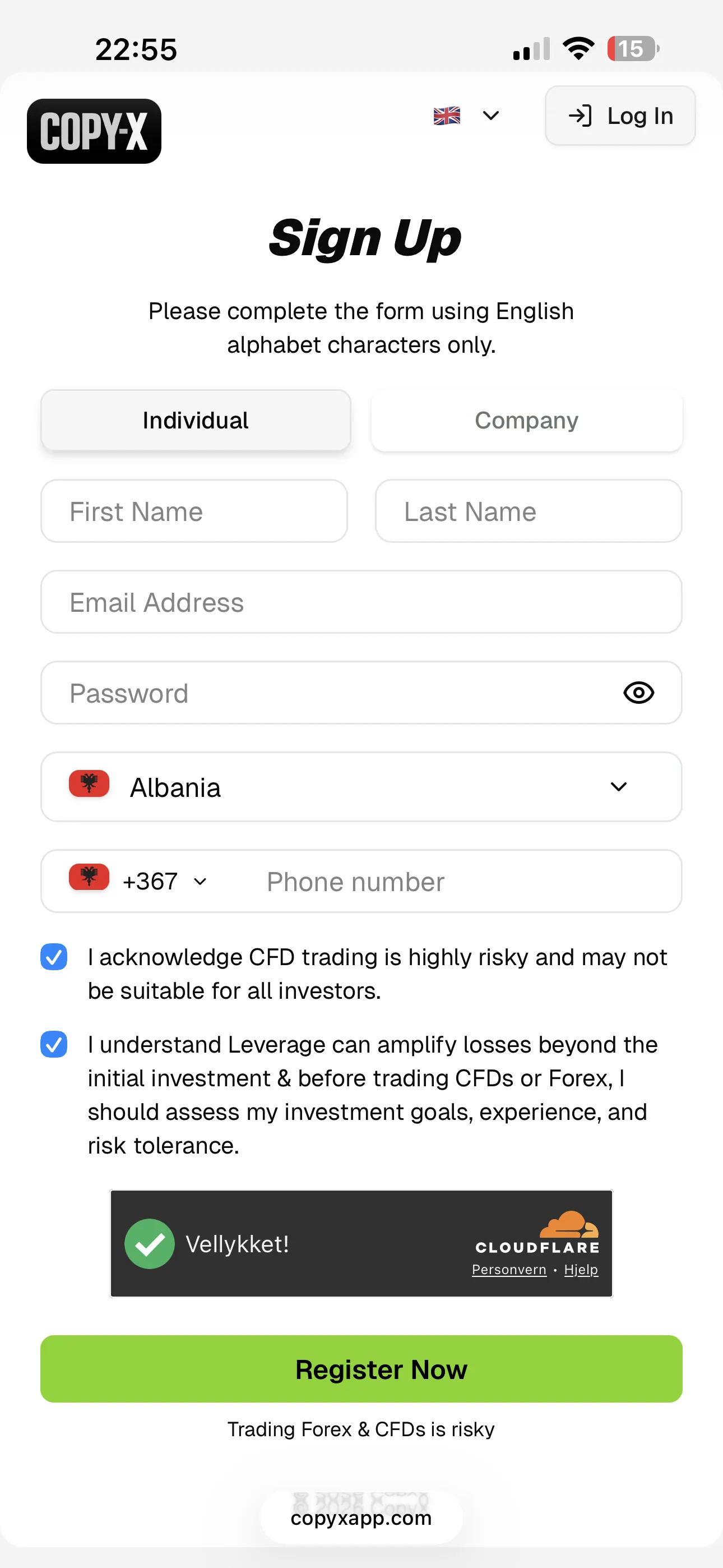
Use the registration link on this site. You’ll fill in the usual account details and answer CopyX’s onboarding survey — income, trading experience, and similar questions.
CopyX emails a verification link before the account opens, and the link is time-limited — open it soon after signing up. The suitability survey comes next, and the profile page only appears once it is submitted.
 Enlarge screen ↗
The sign-up form on copyxapp.com · captured 10 Sep 2026 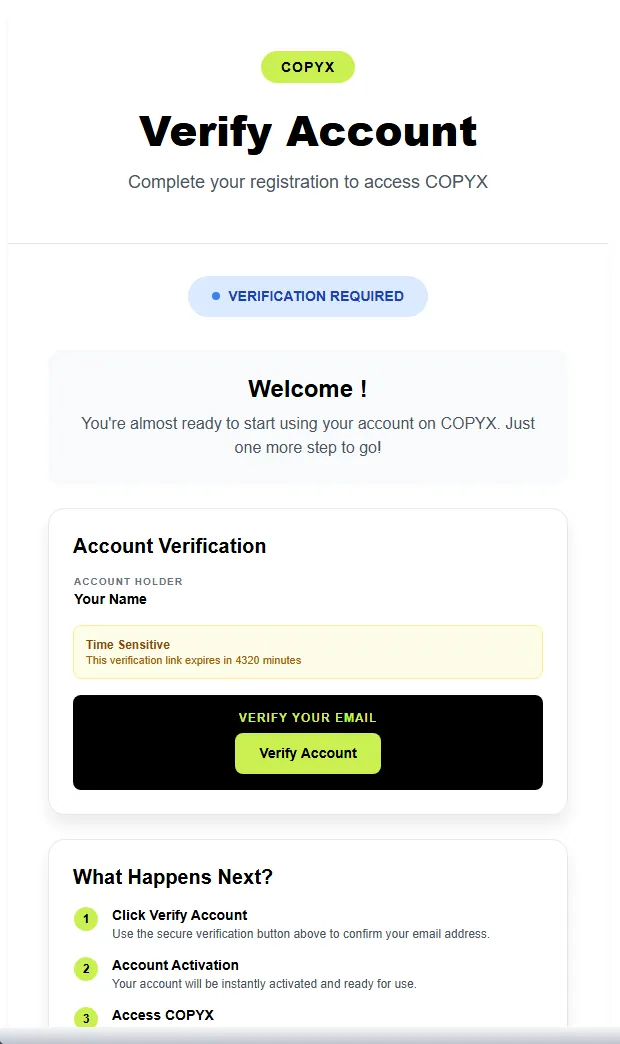 Enlarge screen ↗
The verification email, with the button that activates the account 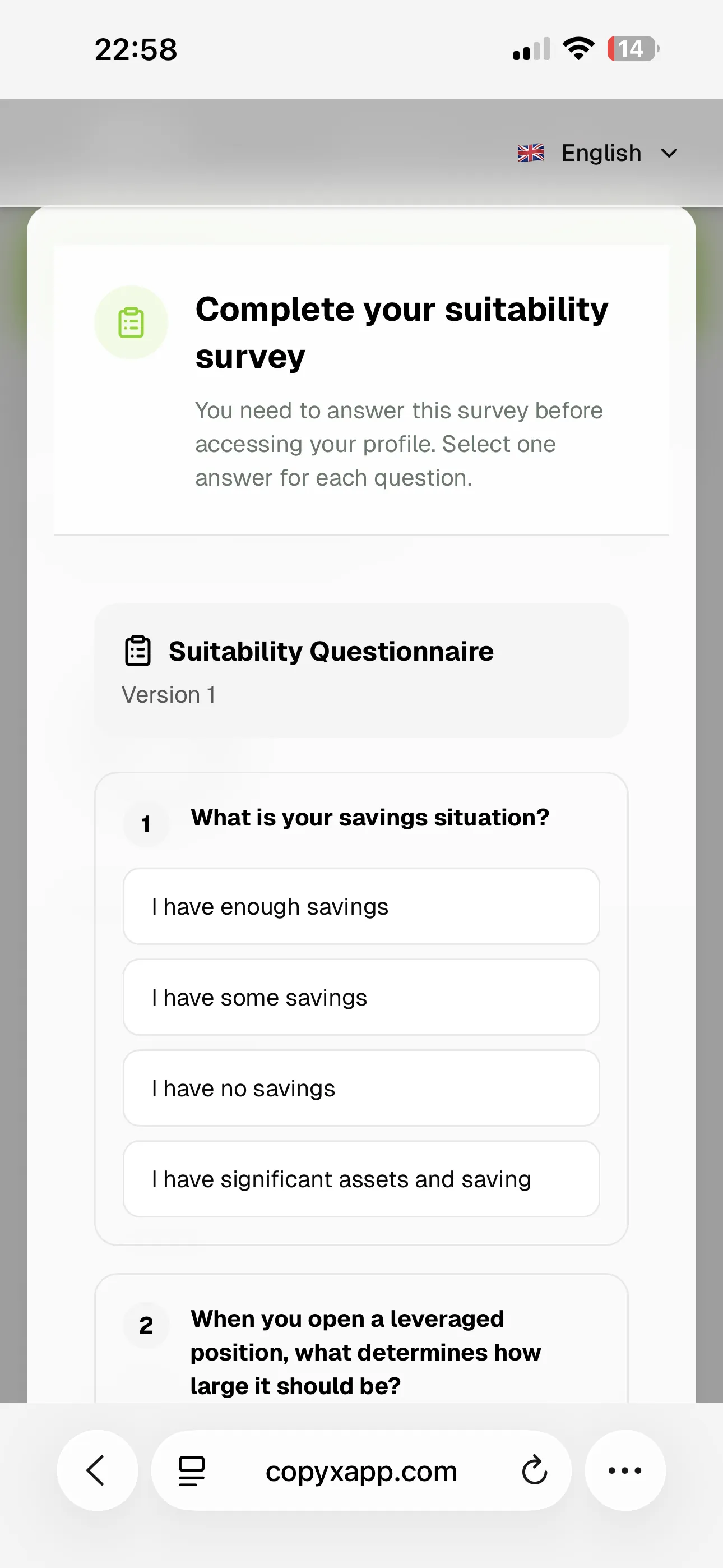 Enlarge screen ↗
The suitability questionnaire, answered before the profile opens · captured 10 Sep 2026 -
Step 2. Find the IBPortal banner
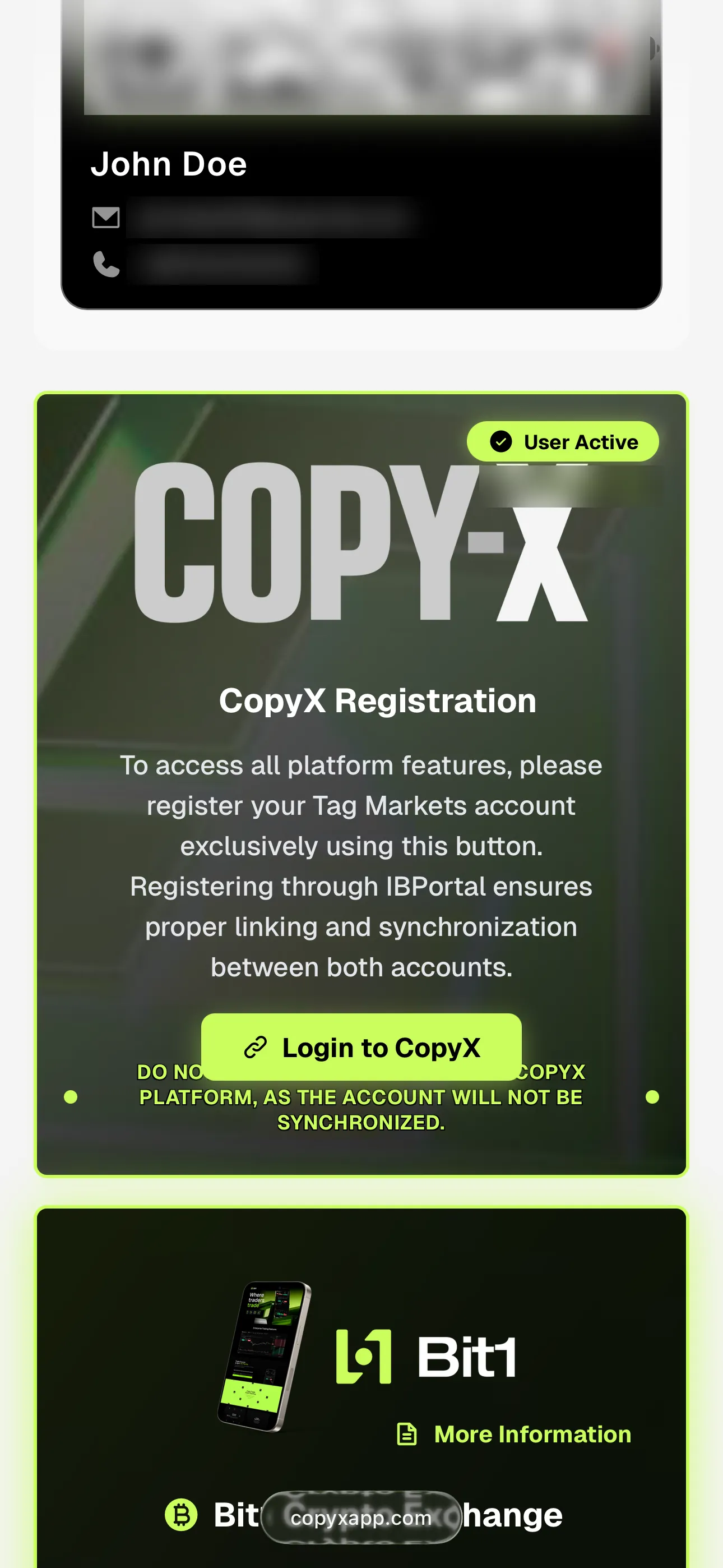
After logging in, scroll down the CopyX main page to a banner reading: “CopyX Registration. To access all platform features, please register your TagMarkets account exclusively using this button. Registering through IBPortal ensures proper linking and synchronization between both accounts.”
 Enlarge screen ↗
The banner to register through — not the Tag Markets site directly · captured 10 Sep 2026 -
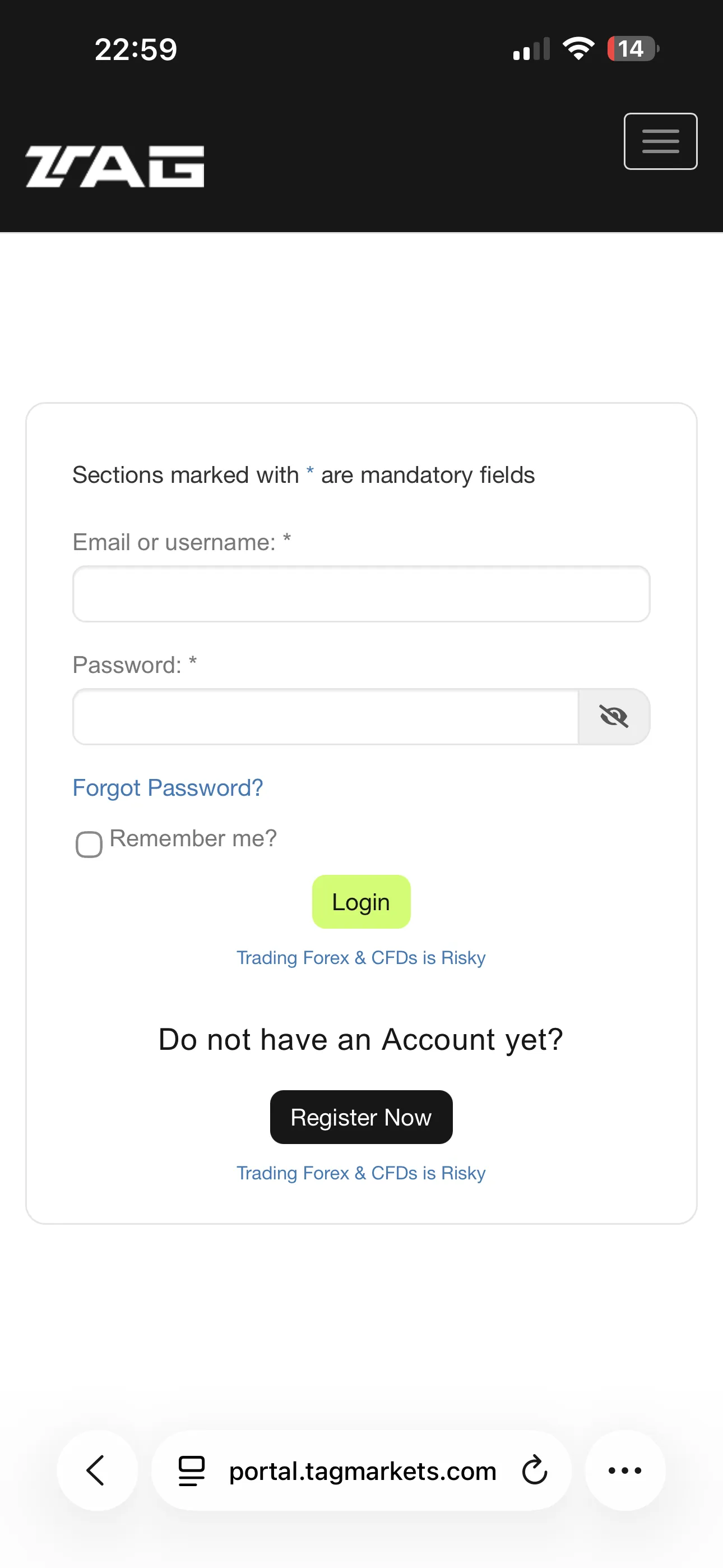
Step 3. Log in to Tag Markets
Click through from that banner, then log in to Tag Markets using the same details you used on CopyX — this is what keeps the two accounts linked and in sync.
If it says your password is wrong
This happens sometimes even with the correct details — it’s a known bug on Tag Markets’ side, not a problem with your account. Tap Forgot password, check your email for the reset link, and set a new password (the same one you used on CopyX works fine). Then log in again and continue.
 Enlarge screen ↗
The Tag Markets portal login, reached from that banner · captured 10 Sep 2026
These first three steps happen on CopyX.
Open the account there, then come back — the rest of this guide follows the same order, screen by screen.
Verify & fund
-
Step 4. Verify your identity
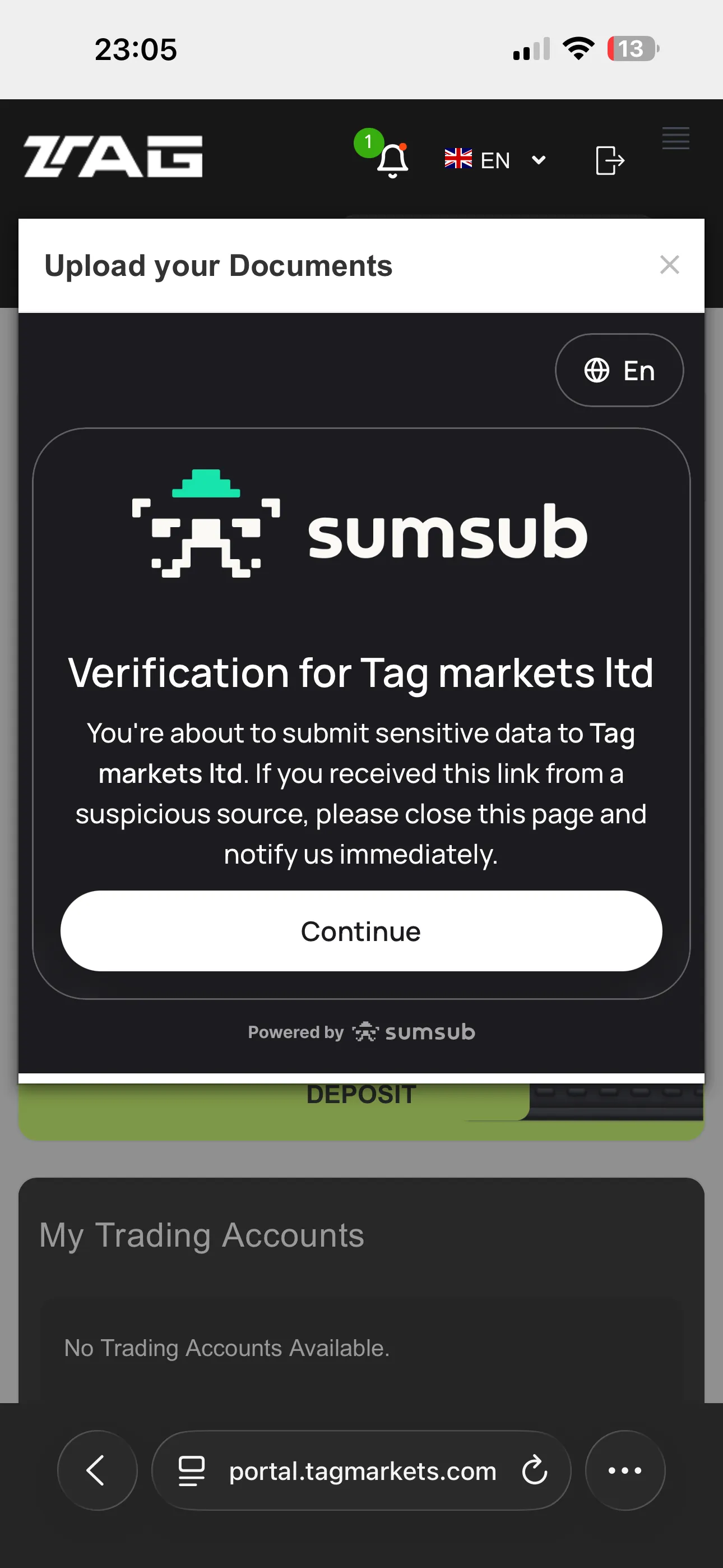
Tag Markets will ask for identity verification — typically a photo of your ID or passport plus a face scan. Follow their steps in order; this happens entirely on their platform.
 Enlarge screen ↗
Verification is handled by Sumsub, not by this guide · captured 10 Sep 2026 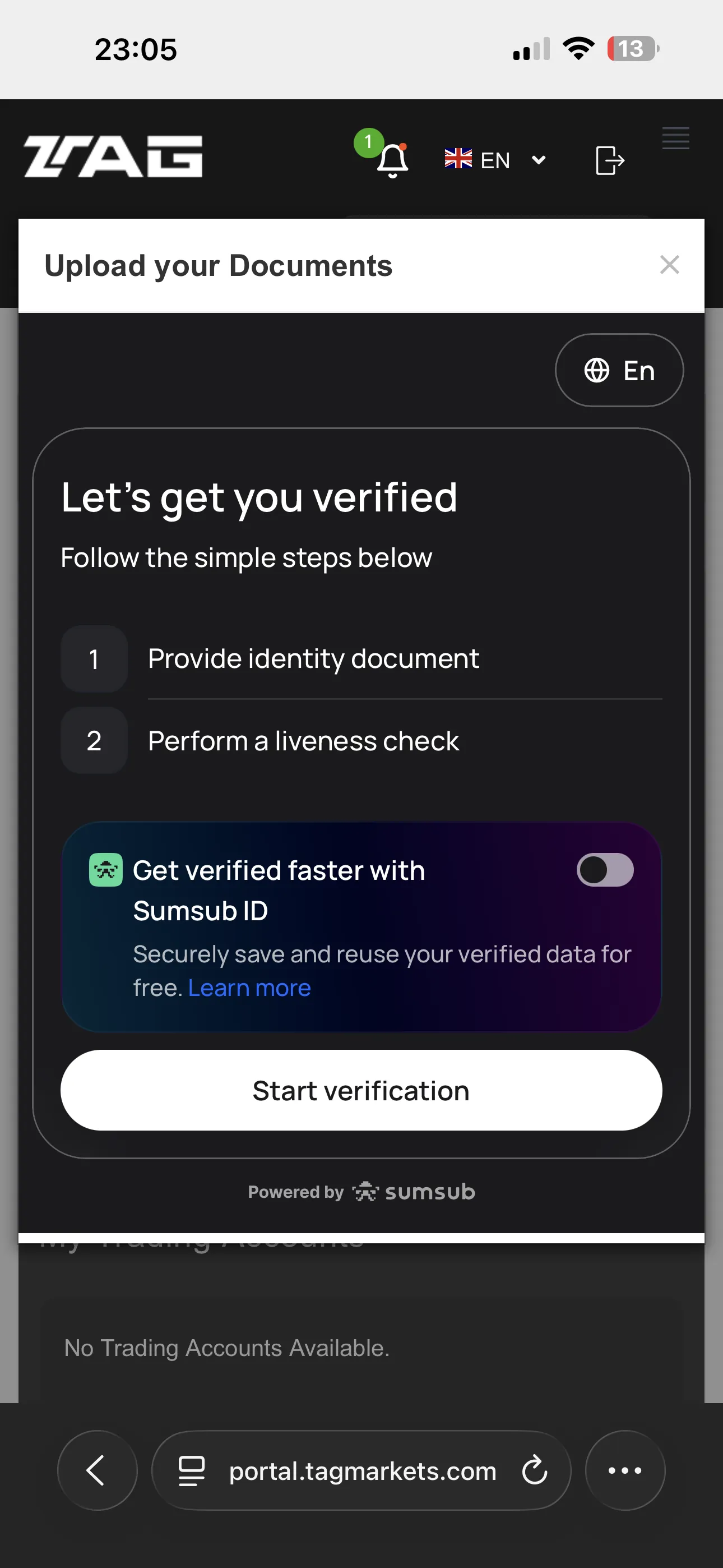 Enlarge screen ↗
Two steps: an identity document, then a liveness check · captured 10 Sep 2026 -
Step 5. Deposit
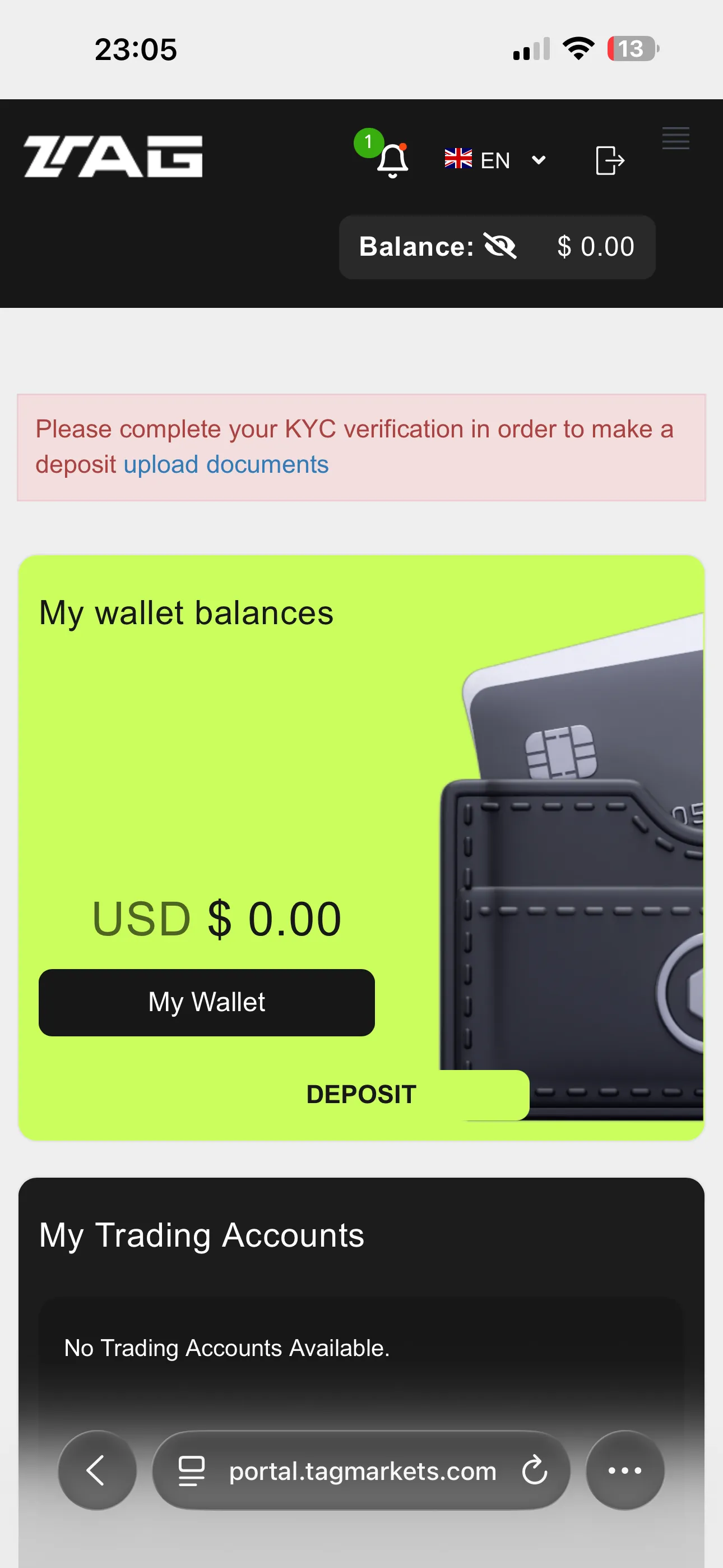
Check the minimum deposit, available payment methods, fees and processing times shown in your account. These can change by region and account type. A deposit minimum is not necessarily the strategy’s minimum allocation.
 Enlarge screen ↗
No deposit is possible until verification clears · captured 10 Sep 2026
What happens between the steps
The setup is not instant, and the gaps are where people assume something broke. Waiting times depend on the provider, your region and your payment method, so treat the ones below as sequence rather than schedule — the platform's own status screen is what tells you where you actually are.
- After you submit identity documents
- Verification is reviewed by Tag Markets, not by this guide, and it can be same-day or take longer if a document is rejected or re-requested. You cannot fund the account until it clears. If the status has not moved, their support is the only place that can tell you why.
- After you deposit
- Crediting time depends on the payment method — cards and crypto usually appear faster than bank transfers. Check the balance in your account rather than assuming; a pending deposit is not yet allocatable.
- After you press Copy Now
- Copying starts from that point forward. It does not backfill the strategy's earlier trades, so nothing appears in your history until the strategy opens its next position.
- Before your first copied trade
- Sonic trades gold, and gold does not trade continuously — a quiet market or a closed session means no new positions. An empty trade history on its own does not tell you whether copying is active; check the strategy's status in the platform instead.
- The 30-day clock
- For amplified accounts the 30 days start at your first trade, not at your deposit. Until that first copied trade opens, the clock has not started. Official account rules ↗
Find Sonic and choose your allocation
Each step below shows the screen you should be looking at while you do it. Tap a screen to enlarge it.
-
Step 6. Open CopyX from the menu
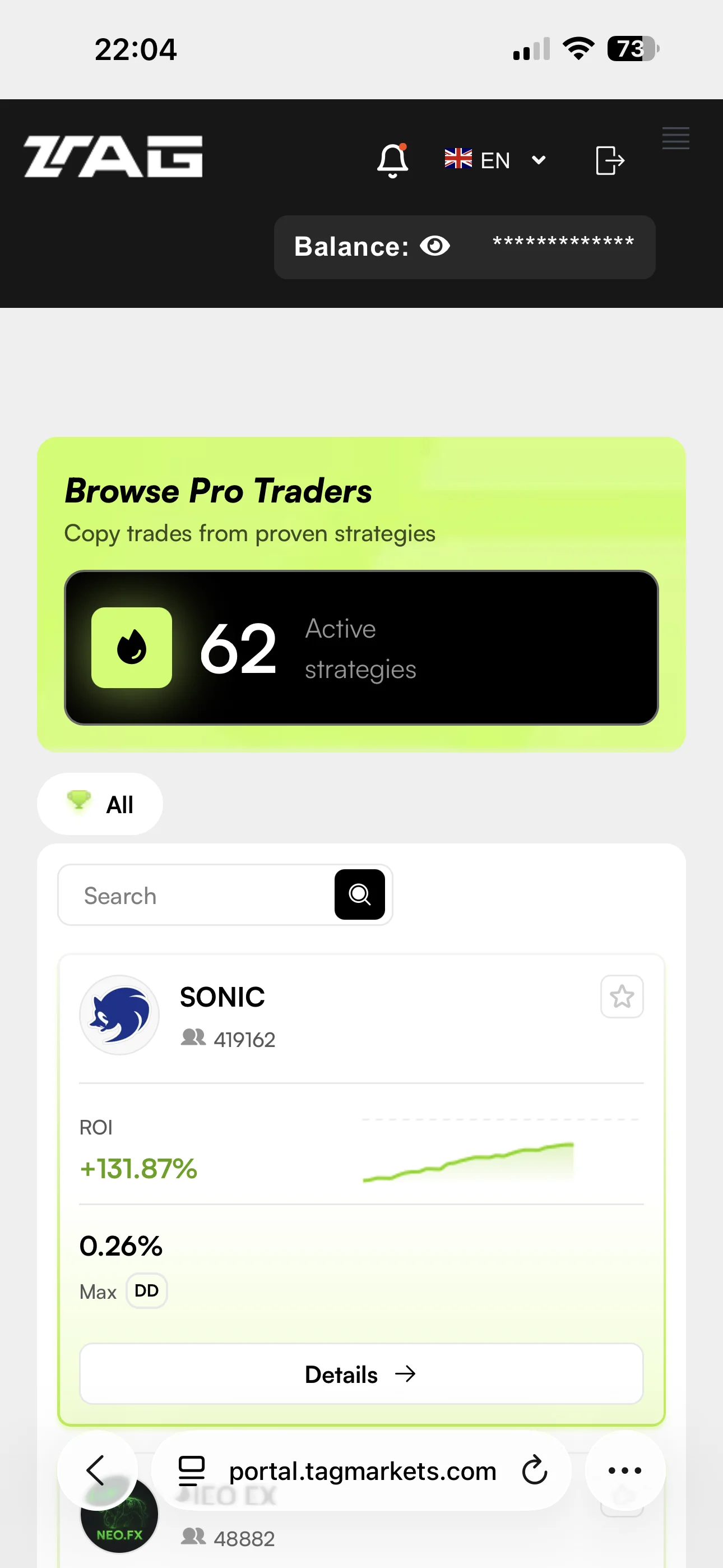
Tap the three-line (☰) menu in the top corner of Tag Markets, scroll all the way down, and select “CopyX.” You land on Browse Pro Traders, where Sonic is one of the strategy cards.
 Enlarge screen ↗
Sonic under Browse Pro Traders · captured 2026-09-08 -
Step 7. Pick a strategy & set an amount
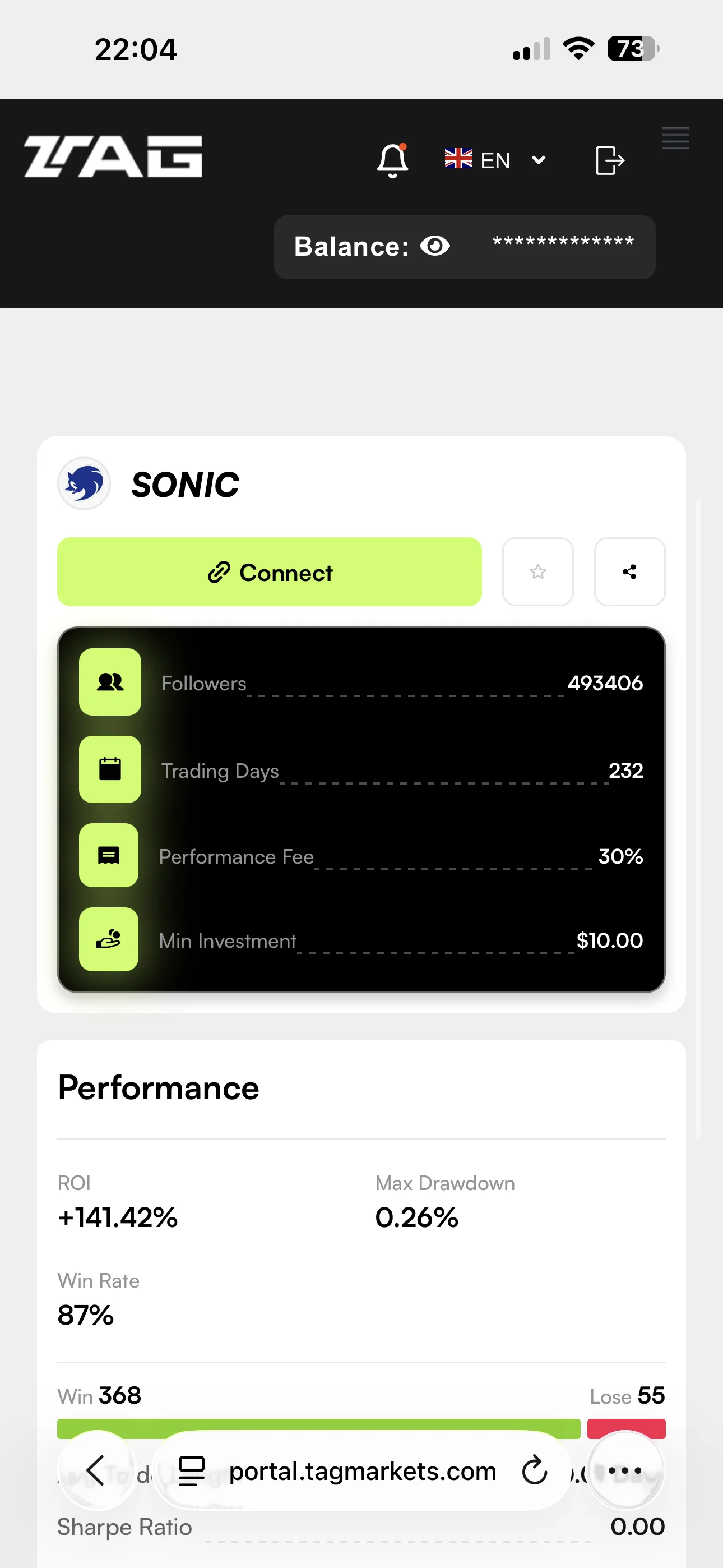
Open Sonic’s strategy details and review the current minimum, performance fee and risk information. Then enter your chosen allocation and check the account tier displayed before continuing.
 Enlarge screen ↗
Strategy details, before you connect · captured 2026-09-08 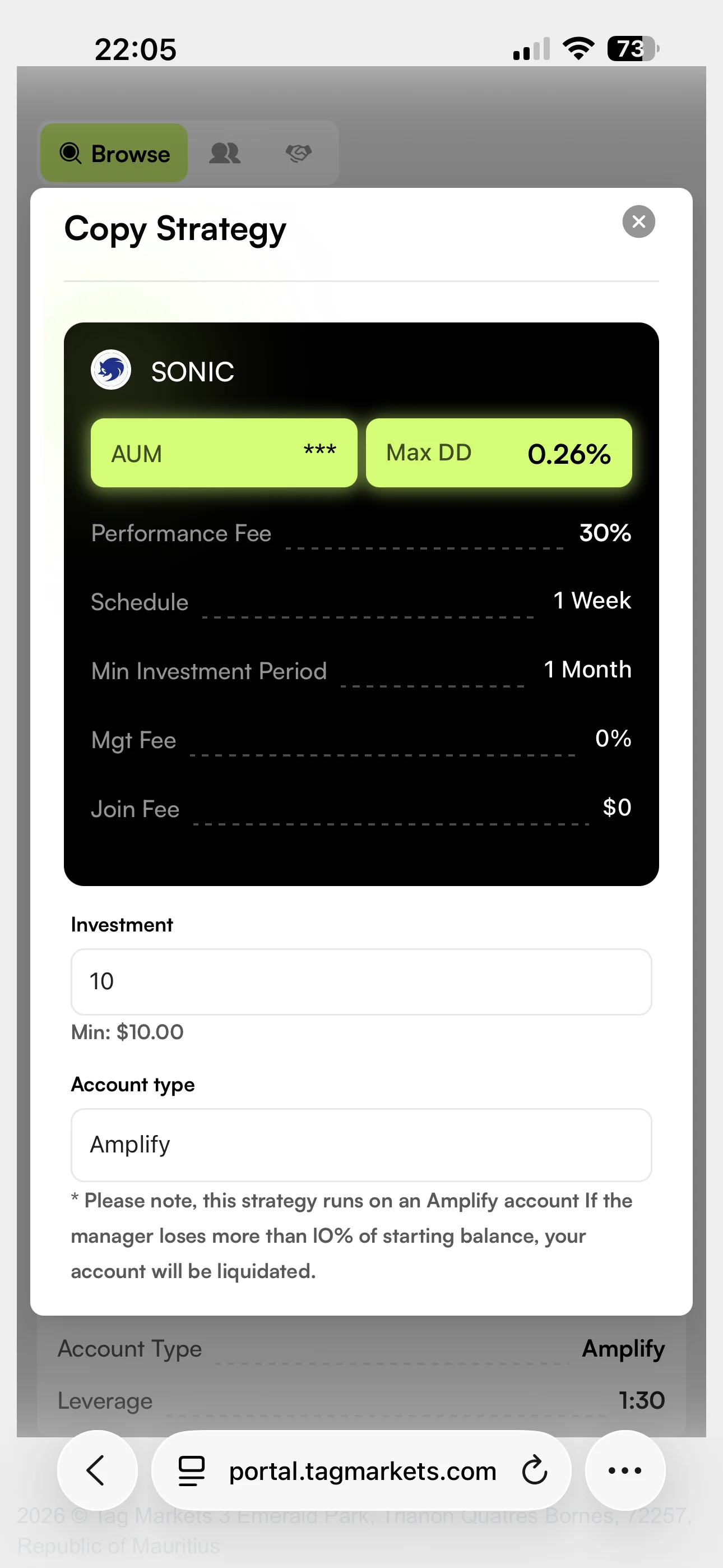 Enlarge screen ↗
Where the amount and the account tier go · captured 2026-09-08 -
Step 8. Use the 24x community token
Before confirming the copy, open Community token. The setup used by GoldCopyGuide uses the values below. Enter both fields, then check that the intended tier is shown before you confirm.
Know what the token does before you enter it
The dialog you are on states that using a token code changes your Amplify drawdown limit to 5% of the starting balance, against 10% without one. The same screen also prints a separate 10% liquidation note above the token field, and we cannot tell you which one governs your account.
It goes further than that: Tag Markets publishes two help-center articles that describe how this limit is calculated differently — one says it is based on your deposit, an older one says it is based on the full amplified trading amount. Those two readings put the real dollar figure roughly 12× apart. See both readings and the arithmetic before you rely on any number here.
After confirming, check that the correct strategy, allocation and account tier appear in your dashboard. Check the platform’s status and trade history; an empty history alone does not confirm whether copying is active. Ask official support if the state is unclear.
That is every screen, in order.
Keep this page open beside you as you go — the community token and GU/ID are in the 24x token step above.
Your setup checklist
Stopping and withdrawing
Stopping a strategy and withdrawing money are separate actions. Check the current account controls before confirming either.
- Stop copying
- Use the strategy controls in CopyX. Before confirming, check how the platform will handle existing open positions; do not assume stopping new copies closes them.
- Withdraw profits
- Tag Markets’ amplified-account rules state that profits can be withdrawn at any time. Check the available amount and current payment conditions in your account.
- Withdraw your deposit
- For amplified accounts, the remaining initial deposit becomes withdrawable 30 days after the first trade. Withdrawing it closes the account. An upgrade restarts the waiting period.
A few useful terms
- Allocation
- The amount you assign to a strategy.
- Master / follower
- The strategy account and the separate account copying its new trades.
- Drawdown
- A decline from a previous account peak. Check whether a figure measures balance or equity, including open positions.
- Amplified balance
- Trading capacity above your deposit. The extra capacity is not cash you can withdraw.